
When you create or edit a product with the Bundle Builder product type, a Bundle Steps tab appears in the product data panel.
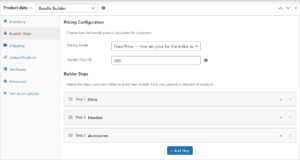
Pricing Configuration
Choose how the bundle price is calculated for the customer:
Pricing Mode — Select from three modes:
- Sum of Items — The bundle price is the total of all selected product prices. No discount is applied.
- Fixed Price — A flat price for the entire bundle regardless of which products are chosen. When this mode is selected, a Bundle Price field appears where you enter the price in your store’s currency.
- Tiered Discounts — The bundle price is the sum of items, with a percentage discount applied when the total item count meets a defined threshold.
Discount Tiers (Tiered mode only) — Add one or more tiers with:
- Min Items — The total number of items across all steps that triggers this tier
- Discount (%) — The percentage discount applied when this tier is reached
Tiers are applied based on the highest threshold met. For example, if you configure 5% off at 3 items and 10% off at 6 items, a customer selecting 7 items receives 10% off.
Builder Steps
Each step is a stage in the bundle wizard where the customer selects one or more products.
Per-step fields:
| Field | Description |
|---|---|
| Step Title | The heading shown to the customer for this step (e.g., “Choose a Base”) |
| Product Source | Whether products come from a category or a hand-picked list |
| Categories | (Source = By Category) One or more product categories to display |
| Products | (Source = Hand-Picked) Search and select specific products to display |
| Min Items | Minimum number of products the customer must select. Set to 0 to make the step optional. |
| Max Items | Maximum number of products the customer can select. Set to 1 for single-choice steps. |
Steps can be reordered by dragging the handle on the left side of each step card.
Practical example: To create a “Choose Your Toppings” step where customers must pick at least one topping but no more than three: set Step Title to “Choose Your Toppings”, set Product Source to “By Category” and select your Toppings category, set Min Items to 1, and Max Items to 3.