
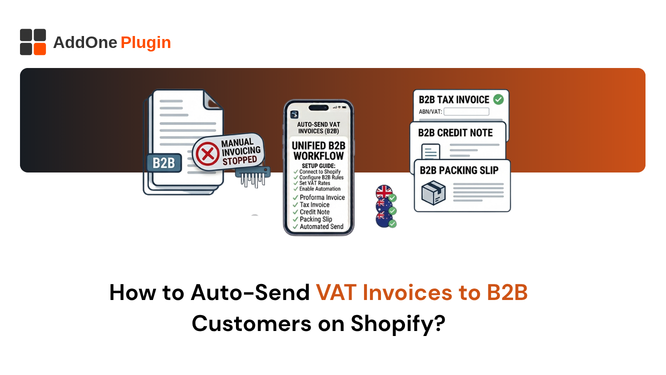
Every B2B order you process should generate a compliant VAT invoice and deliver it to the buyer automatically, without any manual action from you. Most Shopify merchants are not operating this way. They either rely on Shopify’s order confirmation email (which is not a tax invoice), send invoices manually on request, or use a printing app that requires them to generate and email documents one by one.
Automating VAT invoice delivery is not a luxury for high-volume stores. It is basic operational hygiene for any merchant with B2B customers. This guide covers how Shopify’s native invoicing falls short, what auto-send actually means in a compliant invoicing context, and the exact steps to set it up with InvoiceForge.
Why Shopify Does Not Auto-Email VAT Invoices (and What It Does Instead)
Understanding what Shopify does by default helps you identify exactly where the gap is.
The Order Status Page Invoice Visible but Not Delivered
Shopify Tax’s built-in VAT invoice feature, when activated, attaches a PDF invoice to the order status page. The customer can find it there if they know to look. But Shopify does not proactively send this invoice to the customer by email. The buyer receives the standard order confirmation email, which contains a link to their order status page, and must navigate there to find the invoice.
For B2B buyers whose accounts payable teams process incoming invoices from a dedicated email inbox, this workflow does not function. Their team is not logging into Shopify’s order status page. They need a PDF in their email inbox.
Order Confirmation Email Not a Tax Invoice
Shopify’s order confirmation email is a transactional notification. It confirms the order was placed and provides order details. It does not include a sequential invoice number, the seller’s VAT registration number as a clearly labelled field, a per-line VAT breakdown, or reverse charge language for cross-border B2B orders. In every jurisdiction that requires formal VAT invoices, Shopify’s order confirmation fails as a substitute.
The Gap Every B2B Merchant Hits
The result is a predictable pattern: a B2B buyer places an order, receives an order confirmation, and within hours emails you asking for a proper invoice. Your team manually generates a PDF, either from a spreadsheet or a printing app, and emails it. This takes time, introduces errors, and creates a delayed first impression with a customer who needed a document at the moment of purchase.
At ten orders a day, this is manageable. At fifty, it becomes your team’s primary job. At a hundred, it is untenable.
What Auto-Send Actually Means for B2B Invoicing
Auto-send is not just “Shopify emails something.” It means a compliant tax invoice is generated and delivered automatically, without any human in the loop.
Trigger: Invoice Generated the Moment an Order Is Placed
The invoice is created as soon as the trigger event occurs. For most B2B operations, the right trigger is order creation: the moment a buyer places an order, the invoice is generated with all required fields, assigned a sequential invoice number, and locked against modification. For stores with deferred payment (Net 30/60), triggering on order creation gives the buyer their invoice at the start of the payment window.
For stores where payment is collected upfront, triggering on payment confirmation is also valid. InvoiceForge lets you choose the trigger that matches your operational workflow.
Delivery PDF Attached and Emailed to the Buyer Automatically
The generated invoice PDF is attached to an automated email sent to the buyer’s email address on file in Shopify. This is a PDF attachment in the email, not a link to a page. B2B accounts payable teams expect PDF attachments. They save them, archive them, and match them to purchase orders. A link to a web page does not fit into their workflow.
The email template, subject line, and branding can all be customised in InvoiceForge to match your store’s communication style.
Copy Duplicate Sent to Your Accountant or ERP Inbox
Every auto-sent invoice can also be CC’d to a secondary email address: your accountant, your finance team, or your ERP system’s document inbox. This keeps your financial records updated in real time without any manual transfer. For MTD compliance in the UK, this direct flow from invoice generation to accounting software is exactly what digital record-keeping requires.
How to Set Up Auto-Send With InvoiceForge Step by Step
Setup takes under ten minutes from install to first compliant auto-sent invoice.
Step 1: Install InvoiceForge and Connect Your Shopify Store
Install InvoiceForge from the Shopify App Store. The app requests the standard Shopify permissions needed to read orders, customer data, and tax settings. Connection is automatic. No API keys or manual configuration are required.
Step 2: Configure VAT Settings and Invoice Template
Enter your business name, address, and tax registration numbers in InvoiceForge’s account settings. For UK merchants, this is your VAT number. For EU merchants, your USt-IdNr or equivalent. For Australian merchants, your ABN. Select the regional invoice template appropriate for your primary market. InvoiceForge pre-populates the mandatory fields for each region.
Customise the invoice template with your logo and brand colours. You can preview the invoice with a sample order before enabling auto-send.
Step 3: Enable Auto-Send and Choose Your Trigger Event
In InvoiceForge’s automation settings, enable auto-send and select your trigger. Options include: order created, order paid, or order fulfilled. For most B2B operations, “order created” is the right choice. For B2C or mixed operations, “order paid” prevents invoices from being generated for abandoned checkouts.
You can also configure different triggers for different customer segments: auto-send on order creation for B2B-tagged customers, and on payment for retail customers.
Step 4: Add a CC Email for Your Accountant
In the delivery settings, add a CC email address. Every invoice generated by InvoiceForge is sent to the buyer and CC’d to this address simultaneously. Use your accountant’s email, your finance team inbox, or the document import address of your accounting software (Xero, QuickBooks, and MYOB all support email-based document import).
Can You Send Invoices Only to B2B Customers and Skip B2C?
Yes. Conditional invoice sending based on customer type is a key feature of a professional invoicing setup.
Using Shopify Customer Tags to Segment B2B From Retail
Shopify’s customer tagging system lets you label accounts with any tag you choose. Tag your wholesale accounts with “Wholesale,” “B2B,” or “Trade.” Leave retail customers untagged, or apply a “Retail” tag. These tags are readable by InvoiceForge and can be used to apply different document and delivery rules to each segment.
Tagging can be done manually for existing customers and automated using Shopify Flow for new customers who register through a wholesale portal. For Shopify Plus merchants, B2B company profiles provide an even more structured way to identify and manage business customers.
Setting Conditional Send Rules in InvoiceForge
InvoiceForge’s conditional logic allows you to send full tax invoices to B2B-tagged customers automatically, while allowing Shopify’s standard order confirmation to serve retail customers. You can also configure different invoice templates for different customer segments: domestic B2B versus EU B2B versus Australian wholesale, each with the appropriate compliance fields and language.
Draft Orders and Payment Terms Handling Wholesale Separately
For wholesale orders processed through Shopify’s draft order system, InvoiceForge generates the invoice when the draft order is created, before payment. This is the standard B2B workflow: invoice first, payment follows under agreed terms. The invoice includes the payment due date calculated from your configured Net payment terms, and the buyer receives it immediately when the draft order is sent.
What Your Auto-Sent Invoice Must Include for VAT Compliance
Automation handles delivery, but the invoice content must still meet the legal requirements for each region.
Mandatory Fields by Region (UK, EU, Australia)
UK invoices need: sequential invoice number, issue date, tax point date (if different), your VAT number, buyer details, line-item VAT breakdown at the applicable rate, net amount, and total VAT. EU invoices need: the above plus buyer’s VAT number for B2B, and reverse charge language where applicable. Australian invoices need: the words “Tax Invoice,” your ABN, the GST amount per line, and the buyer’s ABN for sales over AUD $1,000. InvoiceForge applies the correct mandatory fields for each region based on the shipping address.
Reverse Charge Language for Cross-Border B2B
When a B2B buyer in another EU country provides a verified VAT number, InvoiceForge automatically applies zero-rating and adds the required reverse charge notation to the invoice. The specific language varies by target country: the English phrase “Reverse Charge” is universally accepted, while the German “Steuerschuldnerschaft des Leistungsempfangers” reduces friction with German accounting teams. InvoiceForge includes both options.
Sequential Invoice Numbers: Why They Must Never Skip
Every compliant tax jurisdiction requires continuous, unbroken invoice numbering. InvoiceForge maintains a dedicated invoice number series independent of Shopify’s order numbers. Cancelled orders result in voided invoice records, not skipped numbers. Voided numbers are documented and auditable. The sequence never has unexplained gaps.
FAQ Auto-Sending Invoices on Shopify
Can I Resend an Invoice if the Customer Did Not Receive It?
Yes. InvoiceForge maintains a record of every invoice generated. You can access any invoice from the InvoiceForge dashboard and resend it to the buyer with a single click. The resent invoice is the same locked document as the original, ensuring the invoice number and content remain consistent. You can also generate a download link to send the invoice through another channel if the customer prefers.
What Happens When an Order Is Edited After the Invoice Is Sent?
If a Shopify order is edited after an invoice has been generated and sent, InvoiceForge does not automatically update the invoice. The original invoice remains locked. If the edit changes the amount due (additional items added, prices adjusted), you issue a new invoice or a credit note for the difference, referencing the original invoice number. This is the legally correct approach in all jurisdictions: tax invoices are not edited retroactively; corrections are made through supplementary documents.
Manual invoice delivery is a workflow that does not scale. Every B2B order you process deserves a compliant, branded PDF invoice in the buyer’s inbox the moment they order, without anyone on your team lifting a finger.
Install InvoiceForge for free from the Shopify App Store. Set up auto-send in ten minutes. Start with your next order.