
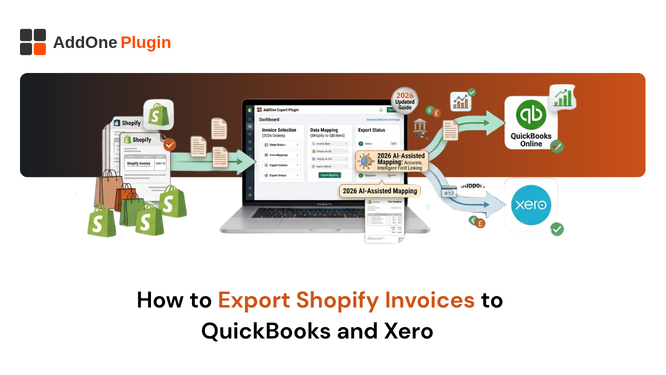
Your Shopify payout rarely matches your bookkeeping software, and that mismatch is the single biggest reason store owners dread reconciliation day. This guide walks through why the gap exists and the three practical ways to close it, so you can choose the right one for your store’s size and complexity instead of guessing.
Why Shopify Payouts Don’t Match Your Books
Shopify deposits a net amount into your bank account after subtracting processing fees, refunds, and sometimes taxes, while your accounting software expects to see gross sales, fees, and refunds recorded as separate line items. Recording the net deposit as revenue understates your actual sales and distorts your margins.
The Net Deposit Problem
A single payout can bundle dozens or hundreds of individual orders, each with its own fee structure depending on payment method and card type. Without a system that breaks this down, you either spend hours manually itemizing each payout or your books quietly drift out of sync with reality.
Fees, Refunds, and Tax Line Items
Processing fees vary by plan tier, card type, and whether you use Shopify Payments or a third-party gateway. Refunds need to be recorded separately from sales, not netted against them, and sales tax collected on Shopify’s behalf needs its own account so it does not get mistaken for revenue.
Option 1: QuickBooks Online Connector by Intuit
QuickBooks offers a native Shopify connector that syncs orders, products, and customers directly into your books.
What It Syncs (and What It Doesn’t)
The connector handles order-level syncing well, but it does not reconcile payouts against your bank deposits automatically. If you use multiple payment gateways (Shopify Payments plus PayPal or Klarna, for example), you will still need to manually match deposits to what landed in your bank account.
Option 2: Dedicated Reconciliation Apps (A2X, Link My Books)
Payout reconciliation apps pull your Shopify payouts and convert each one into a single summarized journal entry or invoice that matches your bank deposit exactly, breaking out sales, fees, refunds, and tax into the correct accounts.
How Payout Summarization Works
Instead of importing every individual order line, these apps post one clean entry per payout that mirrors what actually hit your bank account, which is what makes one-click reconciliation possible in QuickBooks or Xero.
When the Extra Cost Is Worth It
This approach makes the most sense for stores processing meaningful order volume across multiple payment gateways or currencies, where manual reconciliation would otherwise consume hours every week. For a small store doing a handful of orders a day, the subscription cost may not be justified yet.
Option 3: One-Click Export From Your Invoicing App
A third path, and one most guides skip, is exporting directly from the app that is already generating your invoices, so the numbers you export match the documents your customers actually received.
Exporting Invoice Data Straight to QuickBooks or Xero
InvoiceForge includes accounting exports for QuickBooks, Xero, and generic CSV built directly into the app, so you are not paying for a second subscription just to move invoice data into your books. Because the export comes from the same records used to generate the invoice, there is no risk of the numbers drifting apart.
Keeping Invoice Numbers Consistent With Your Books
When your invoicing app and your accounting export are the same system, your invoice numbers stay identical between what the customer received and what shows up in QuickBooks or Xero. That consistency matters if you ever get audited or need to trace a specific invoice back to a customer dispute. Our guide on customizing your invoice number format covers how to set up a numbering sequence that holds up under scrutiny.
Choosing the Right Method for Your Order Volume
There is no single right answer here. The best method depends on how many orders you process and how many payment methods or currencies you support.
Under 100 Orders a Month
At this volume, the QuickBooks connector or a direct export from your invoicing app is usually enough. The manual reconciliation work involved is small enough that a dedicated payout summarization tool is overkill.
Scaling B2B and Wholesale Volume
Once you are processing significant wholesale volume with net payment terms, purchase orders, and possibly multiple currencies, the combination of an invoicing app with a built-in accounting export and a dedicated payout tool for high-volume payment gateway reconciliation tends to work best. See our full wholesale invoicing setup guide for how the pieces fit together, and how PO numbers factor in, covered separately in Add PO Number to Shopify Invoices.
Reconciliation should not be the reason you dread the end of every month. InvoiceForge exports your invoice data to QuickBooks, Xero, or CSV in one click, keeping your billing records and your books in sync from the same source.