
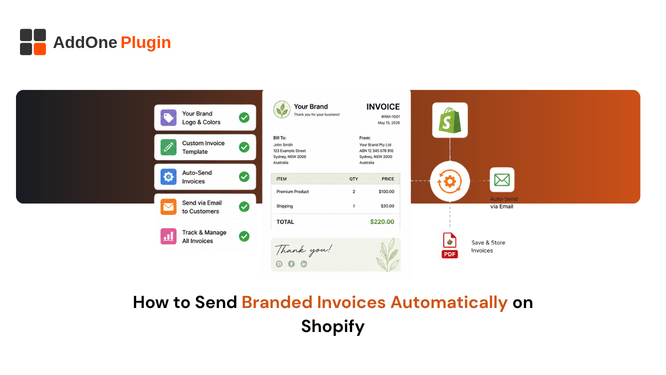
A lot of apps marketed as “automatic invoicing” still require you to manually insert a download link into your Shopify notification emails, which means a document only gets created if the customer bothers to click it. This guide covers the difference and walks through setting up true automation that fires on its own, delivers a properly branded document, and never depends on the customer taking any action at all for a record to exist on file for every single order that comes through your store. It also covers the delivery and testing details that determine whether that automation actually works reliably once real customers start relying on it.
Manual Download Links vs. True Automation
A manual download link approach generates nothing until a customer clicks it inside an order confirmation or shipping email, which means some customers never receive a document at all if they never click through, and there is no way for you to know which customers fall into that group without checking manually, order by order, which defeats much of the point of automating the process in the first place. True automation generates and delivers the document the moment an order hits a defined status, with no action required from the customer whatsoever, which means every qualifying order produces the same result without exception and without relying on customer behavior you cannot control.
Why Some “Automated” Invoice Apps Still Require Manual Steps
Many order printer apps were originally built around on-demand document generation, printing an invoice when you need one, rather than delivery automation as a core design principle from the start. Retrofitting that model into something that looks automatic often still relies on the download-link workaround rather than a genuine trigger-based system, since rebuilding the underlying architecture to support true automation is a much bigger undertaking than simply adding a link to an existing email template that was already there.
This distinction is easy to miss during a quick evaluation, since both approaches can look identical from the app’s settings screen, with similar-sounding toggle labels and similar dashboard language describing the feature. The only reliable way to tell them apart is to actually test the behavior yourself, placing an order and deliberately not clicking anything in the resulting email, then checking whether a document was generated regardless of that inaction on the customer’s part.
Setting Up Your Branded Template First
Before turning on automation, get your template looking right, since automating a document that is missing your logo or using the wrong colors just means broken paperwork reaches customers faster and at greater volume than it would under a manual process where someone might catch the error along the way. Our invoice customization guide covers logos, fonts, and colors in full detail, including common mistakes worth fixing before automation is switched on rather than after customers have already started receiving the finished result at volume.
Treat this step as a genuine prerequisite rather than something to circle back to later. A store that automates first and brands second ends up sending a wave of generic-looking documents before anyone notices, which is a harder problem to walk back than simply spending an extra hour on the template before flipping the automation switch.
Creating an Automation Rule
Once your template is ready, the automation setup itself takes a few minutes, though the choices you make here matter considerably more than the time investment suggests.
Choosing Your Trigger: Paid, Fulfilled, or Refunded
Most stores trigger invoice generation on payment, since that is the point a formal billing record becomes necessary regardless of when the goods actually ship out. Some stores wait until fulfillment if the invoice needs to include shipping or tracking details that are not yet confirmed at the moment payment clears. Refunds should trigger a separate credit note automatically rather than editing the original invoice, keeping a clean, permanent record of exactly what was originally billed to the customer at the time of purchase.
If your buyers are VAT-registered businesses specifically, our guide on auto-sending VAT invoices to B2B customers covers the compliance side of this same trigger setup, including what additional fields a VAT-compliant invoice needs beyond what a standard consumer invoice would require to satisfy a tax authority.
Sending From Your Own Domain
Configure the automation to send from your store’s own email domain rather than a generic third-party address, so the invoice email looks legitimate to the customer and does not get flagged or ignored as unfamiliar sender mail sitting in a crowded inbox. This detail also affects deliverability directly, since mail providers weigh sender reputation heavily, and a domain your customers already recognize from other store communications tends to land in the primary inbox rather than a spam or promotions folder they rarely check.
Setting this up typically involves a one-time DNS configuration step to authenticate your domain with the invoicing app’s email service, which is worth doing even if it feels like an extra hurdle during setup. The alternative, sending from a generic shared domain used by thousands of unrelated stores, quietly erodes deliverability over time in ways that are hard to notice until open rates on transactional email start slipping without an obvious cause.
Testing Before You Go Live
Automation that is wrong at scale is worse than no automation at all, since it reaches every customer instead of just the ones you would have handled manually and potentially caught an error on before it went out the door.
Placing a Test Order End-to-End
Place a real test order, walk it through payment, fulfillment, and a test refund, and confirm the invoice, packing slip, and credit note all generate correctly and look right in an actual inbox, not just the app’s preview screen, which can sometimes render differently than a real email client does once it actually arrives. Check formatting on both desktop and mobile email clients before turning automation on for real customers, since a template that looks perfect on a wide desktop screen can break or truncate awkwardly on a phone.
It is also worth having someone outside your immediate team review the test documents with fresh eyes. Whoever built the template has likely stared at it long enough to stop noticing small issues, a slightly misaligned logo or an oddly worded line item, that a first-time viewer would catch immediately without any prompting.
What Customers See When It Works
Done correctly, a customer never has to ask where their invoice is, and the entire document lifecycle happens quietly in the background without anyone on your team needing to think about a specific order once it has been placed and confirmed.
The best sign that automation is working correctly is silence, an absence of “where is my invoice” tickets rather than a noticeable drop in a metric you were tracking closely. This is worth communicating to a wider team so the lack of visible activity around invoicing is understood as success rather than mistaken for the app simply not doing anything.
Email Delivery vs. Self-Serve Downloads
Some stores deliver the PDF as an email attachment immediately after purchase. Others, or both, add a self-serve download link on the customer’s account order history page, so a customer who needs a copy months later can retrieve it without emailing support and waiting on a reply that may take a day or two to arrive. Our broader paperwork automation guide covers combining invoices, packing slips, and receipts into one automated system rather than setting each up separately with its own trigger and its own template to maintain over time.
Running both delivery channels together tends to work best in practice. Email delivery reaches the customer right at the moment the document is most relevant, while the self-serve option quietly handles every later request that would otherwise land in your support inbox as an easily avoidable ticket.
Neither channel is a substitute for the other, and stores that only implement one tend to notice the gap eventually, whether that shows up as a spike in “resend my invoice” requests or as a missed opportunity to reduce a recurring support burden that a simple account page link could have prevented from ever forming a pattern.
Manual download links are a workaround, not automation, regardless of how the app marketing describes them. InvoiceForge triggers real automation on order events and sends branded invoices from your own domain, without requiring a customer to click anything first before a proper record exists on file.