
Pricing modes
The plugin supports three distinct pricing strategies, configured per product.
Fixed Price charges the same amount regardless of what the customer picks. This is ideal for gift boxes or bundles where the value proposition is the curated experience, not the individual items.
Per Item Price totals up the prices of all selected items. The cart total updates in real time as customers add or remove products. This works well when your items have meaningfully different prices and you want customers to pay for exactly what they choose.
Base Price + Add-on products combines a flat container fee with individual item prices. The product page shows a running breakdown of the base fee and add-ons total, updating live. Use this for situations like a “build a box” with a tray or packaging cost baked in as the base fee.
Child product sourcing
Child products are the items customers can pick from when building their container. There are three sourcing modes:
Specific Products is the most controlled option. You hand-pick a list of simple products from the product editor. The list is static — if you want to add or remove items, you edit the container product.
Product Categories dynamically pulls all eligible simple products from one or more categories. When products are added or removed from those categories in the future, the container automatically reflects the change without any product edits required.
Product Tags works the same way as categories but filters by product tags instead. You can use this to create cross-category containers (e.g., all products tagged “gluten-free”).
For category and tag sources, the Maximum Products to Display setting lets you cap how many products appear, which is useful for very large categories. Products are sorted alphabetically by title.
In all cases, only simple products that are published, purchasable, and visible pass the eligibility check. Out-of-stock products appear in the selection interface with an “Out of Stock” overlay and their quantity controls removed.
Quantity rules
The Minimum Quantity and Maximum Quantity settings define the rules for how many items a customer must or may select in total across all child products.
The frontend enforces these rules interactively. The progress indicator shows how many items have been selected versus the target. The Add to Cart button is disabled until the minimum quantity has been met. If a maximum is set, quantity controls are disabled once the customer reaches it.
Validation also runs on the server side during cart submission. If the quantities don’t meet the rules, a WooCommerce error notice is displayed and the product is not added to the cart.
Frontend product selection interface
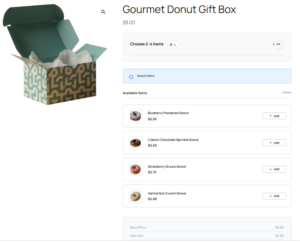
On the single product page, Mix & Match products display a custom add-to-cart interface in place of the standard WooCommerce add-to-cart button. The interface includes:
- Progress header — shows the current item count and target, with both a circular SVG progress ring and a linear progress bar (when a max quantity is set).
- Status banner — a message that updates as customers select items, telling them how many more they need to select or confirming their selection is complete.
- Product grid or list — all eligible child products shown with their thumbnail, name, and price (in Per Item and Base + Add-on modes). Each product has +/− quantity buttons and a quick “Add” button for one-click adding.
- Price summary — visible in Per Item and Base + Add-on modes; shows a live-updating total (and base/add-ons breakdown in Base + Add-on mode).
- Add to Cart button — disabled until the minimum quantity is met; submits the entire container selection to the cart.
The layout (grid or list) is controlled by the Display Layout product setting.
Cart behavior
When a Mix & Match container is added to the cart, the plugin adds both the container item and each selected child product as separate WooCommerce cart items. Child items are tagged internally and hidden from the cart display so the customer only sees one line item for the container.
The container line item shows the product name with a collapsible or inline list of the selected items (with thumbnails, quantities, and per-item prices where applicable). Removing the container from the cart automatically removes all its child items. Child items cannot be removed independently.
The cart count (shown in the header) excludes child items so it reflects the number of containers, not the total item count.
If a product that is in the cart as a child item is added independently, the plugin prevents the duplicate addition with an error notice. Similarly, if an independent cart item conflicts with a newly added container, the independent item is removed and a notice informs the customer.
Checkout and order integration
Child items are stored as hidden order line items. In the customer-facing order confirmation and order history pages, only the container item is shown, with the selection listed inline. In the WooCommerce admin Orders screen, child items are also hidden by default, keeping the order view uncluttered.
The Order Again feature is fully supported. When a customer re-orders a Mix & Match container, the original item selections are restored to the cart.
AJAX support
The plugin registers two AJAX endpoints used by the frontend JavaScript:
wc_mnm_add_to_cart— validates and adds a Mix & Match container to the cart. Acceptsproduct_id,quantity, andselected_items.wc_mnm_update_cart— updates the quantity of a cart item. Acceptscart_item_keyandquantity.
Both endpoints are available to logged-in and guest users. All requests are secured with a nonce (wc_mnm_nonce).
Shop page behavior
On shop/archive pages, Mix & Match products display a Select options button instead of the standard Add to cart button. Clicking this takes customers to the product page where they can configure their container.
AJAX add-to-cart is disabled for Mix & Match products since the configuration requires the full single product page interface.