
Price Field Position
- What it does: Controls where on the product page the price input widget appears.
- Default: Before add to cart button
- Options:
After product price— The widget renders below the standard WooCommerce price display, above the add-to-cart form.Before add to cart button— The widget renders inside the add-to-cart form, directly above the button. This is the default and most reliable option.Replace product price— The widget takes the place of the standard price display entirely.
- Note: When using “After product price” or “Replace product price,” the plugin renders a hidden input inside the form that JavaScript keeps in sync with the visible field.
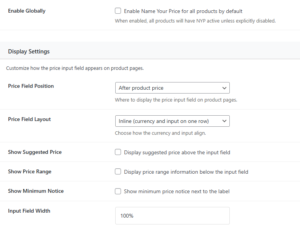
Price Field Layout
- What it does: Controls how the currency symbol and input are arranged within the widget.
- Default: Inline
- Options:
Inline(currency and input on one row),Stacked(label above, input below),Compact(tight spacing)
Show Suggested Price
- What it does: Shows the suggested price as text above the input field.
- Default: On
Show Price Range
- What it does: Shows the minimum and/or maximum price as informational text below the input field.
- Default: On
Show Minimum Notice
- What it does: Displays the minimum price inline next to the field label.
- Default: On
Input Field Width
- What it does: Sets the CSS width of the price input field.
- Default:
100% - Accepted values: Any valid CSS width value, e.g.
100%or300px
Input Field Height
- What it does: Sets the CSS height of the price input field.
- Default: Empty (browser default)
- Accepted values: Pixel values, e.g.
48