
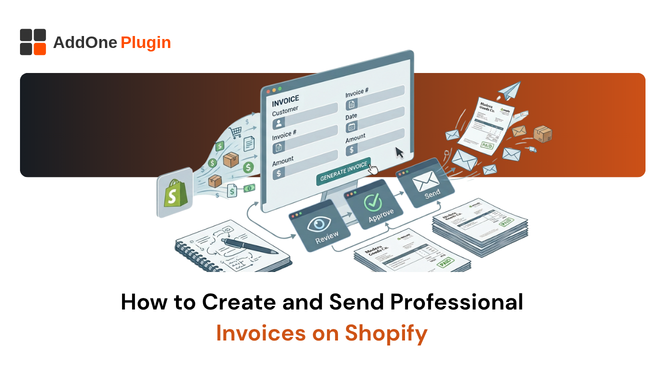
Shopify does not give you a real invoice by default. It sends a plain order confirmation email, and for a lot of stores that is fine, right up until a wholesale buyer, an accountant, or a tax authority asks for something more formal. If you have ever typed “how do I send an invoice on Shopify” into Google at 11 pm, this guide walks through every method that actually works, from the free native option to full automation.
What Counts as a Shopify Invoice?
A Shopify invoice is a document that itemizes what a customer purchased, the tax and shipping charged, and the total owed, issued either before or after payment. It is different from an order confirmation, which simply confirms a purchase happened, and different from a receipt, which confirms payment was received. Shopify only generates the confirmation email natively. For a deeper breakdown of these distinctions, see Shopify B2B Invoice vs. Retail Receipt.
Invoice vs. Order Confirmation vs. Receipt
An order confirmation is sent automatically the moment someone checks out. It looks like an invoice and includes similar information, but it is not a standalone downloadable PDF and it is not built for accounting or tax purposes. A receipt, by contrast, confirms that money has already changed hands and is typically issued after payment clears. An invoice can be sent before payment (as a request for money) or after (as a formal record), which is why B2B buyers and accountants treat it differently from either of the other two.
When Shopify’s Default Email Isn’t Enough
The default confirmation email breaks down in a few common situations: B2B customers whose finance teams require a numbered PDF for their own records, international sales where tax authorities expect a compliant tax invoice, and any store that wants a document customers can download and file without emailing support to ask for one. If any of those apply to you, you need one of the methods below.
Method 1: Send an Invoice From a Draft Order
Shopify’s built-in draft order tool lets you build an order manually and send it to a customer with a link to pay. It is free, requires no app, and works well for one-off wholesale quotes, phone orders, or custom bundles.
Step-by-Step: Draft Orders to Send Invoice
From your Shopify admin, go to Orders > Drafts and click Create order. Add products using Browse or Add custom item, then add the customer’s details. Click Send invoice, write an optional message, and click Review invoice, then Send invoice. Shopify emails the customer a checkout link where they can enter payment and complete the order.
Limitations of the Draft Order Method
Draft orders work, but they are manual by design. There is no automatic PDF attachment, no way to bulk-send invoices for existing paid orders, and no native way to add a tax ID field, a purchase order reference, or a sequential invoice number that is separate from the Shopify order number. For a handful of orders a month this is a non-issue. Past that, it becomes a repetitive task someone on your team has to remember to do for every order.
Method 2: Automatic PDF Invoices on Every Order
The alternative to manually creating a draft order every time is setting up automation that generates and delivers a branded PDF invoice the moment an order hits a certain status, with zero manual steps after setup. We cover the full automation setup, including packing slips and receipts, in How to Automate Shopify Order Paperwork.
Setting Up Automated Delivery Rules
Automation rules work by watching for an order event (a payment, a fulfillment, a refund) and generating the correct document type in response, then emailing it to the customer or making it available for self-serve download. Once the rule is live, you do not touch it again unless you want to change the trigger or the template.
Choosing What Triggers an Invoice (Paid, Fulfilled, Refunded)
Most stores trigger the invoice on payment, since that is the moment a formal billing record becomes necessary. Stores that ship internationally sometimes wait until fulfillment so the invoice can include tracking or shipping details. Refunds should always trigger a separate credit note rather than editing the original invoice, which keeps your records clean for tax purposes.
Do You Need an Invoicing App?
You need a dedicated invoicing app once draft orders start eating real time every week, once a B2B buyer asks for a sequential invoice number, or once you need documents in a currency or language that Shopify’s native tools do not handle well.
Signs You’ve Outgrown Draft Orders
Watch for these signals: you are manually creating five or more invoices a week, customers are emailing to ask for a copy of their invoice after the fact, you are selling B2B and buyers expect a PO number field, or you are expanding into a market with formal tax invoice requirements like the UK, EU, or Australia.
What to Look for in an Invoicing App
Look for automation that actually triggers without manual clicks, support for more than one document type (packing slips and credit notes matter as much as invoices), a template editor that does not require you to write Liquid code, and an export path to your accounting software. Pricing matters too, but the feature list determines whether the app solves the problem in the first place.
Automate Invoicing With InvoiceForge
InvoiceForge is built specifically to remove the manual step from every part of this process. Instead of copying order details into a draft order one at a time, you set an automation rule once and every qualifying order gets a branded PDF automatically.
Six Document Types From One App
InvoiceForge generates invoices, packing slips, receipts, credit notes, quotes, and proforma invoices from a single app, so you are not stitching together three different tools to cover fulfillment, billing, and B2B quoting. All six document types are available on the free plan.
Setting Up Your First Automation Rule
Install InvoiceForge from the Shopify App Store, choose or customize a template with the drag-and-drop editor, then set an automation rule for when the document should generate and send, whether that’s on payment, fulfillment, or refund. Send yourself a test order before turning it on for real customers. If branding your templates is the priority, see our Shopify Invoice Customization guide for fonts, logos, and colors.
Common Invoicing Mistakes to Avoid
A few mistakes show up repeatedly across stores that invoice manually, and all of them are avoidable with a small amount of upfront setup.
Missing Tax and Business Details
Invoices sent without a tax ID, registered business address, or correct tax breakdown can get rejected by a B2B buyer’s accounts payable team, or worse, cause compliance issues in markets with formal tax invoice requirements. Set these fields once in your template rather than adding them order by order.
Inconsistent Numbering
Using the Shopify order number as your invoice number works until you need a separate sequence for B2B versus retail, or until a cancelled order creates a gap that raises questions during an audit. Decide on a numbering format before your invoice volume grows, not after.
Manual invoicing is fine at low volume, but it does not scale, and every store eventually hits the point where automation pays for itself in reclaimed time. Install InvoiceForge to automate invoice creation and delivery without touching a single draft order again.