
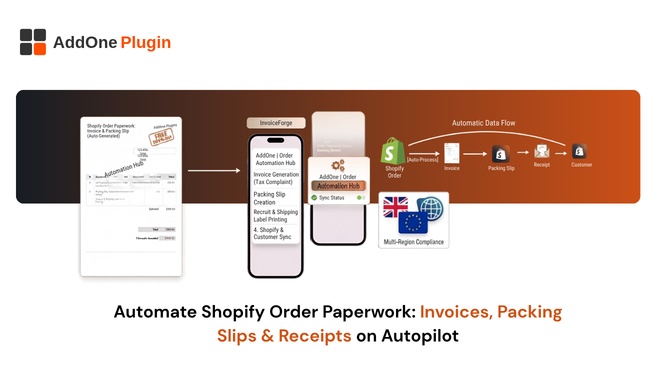
Every order generates the same handful of documents: an invoice, maybe a packing slip, maybe a receipt. Creating each one manually is fine for ten orders a week and unsustainable for a hundred. This guide covers exactly how to put that paperwork on autopilot, document by document, without leaving gaps that only surface once a customer notices something missing, and without buying into automation that looks complete on paper but still depends on a manual step hiding somewhere in the middle.
The Manual Paperwork Problem
Manually generating a document for every order means someone, often the store owner directly, has to remember to do it, do it correctly, and do it for every single order without exception. Miss one, and a customer emails asking where their invoice is, which is a genuinely avoidable support ticket that costs more time to resolve after the fact than it would have taken to prevent in the first place.
This problem compounds quietly rather than announcing itself all at once. A store doing five manual invoices a day barely notices the time cost. The same store doing fifty a day, after a successful marketing push or a new wholesale account coming online, suddenly finds an entire role’s worth of work has appeared with no corresponding hire to cover it, simply because paperwork scaled linearly with orders while nothing else did.
What “Autopilot” Actually Means
True autopilot means a document generates and gets delivered without a human clicking anything, triggered automatically by an order event. This is different from apps that only generate a document reactively, when a customer clicks a download link inserted into an email, since that approach still depends on the customer taking action, not the system taking responsibility for making sure every order gets documented consistently.
The distinction matters more than it sounds. A store that believes its paperwork is automated, when it actually depends on customer clicks, discovers the gap only when a specific customer disputes never receiving an invoice, at which point there is no clean record to point back to, and the store is left trying to prove a negative to a frustrated customer.
Setting Trigger Rules by Order Status
The foundation of paperwork automation is choosing which order status change should generate which document, and getting this mapping right up front avoids a lot of confusion later.
Paid, Fulfilled, and Refunded Triggers
Most stores generate an invoice the moment an order is marked paid, a packing slip when it moves to fulfilled, and a credit note automatically when a refund is issued. Setting all three as separate rules means every document type stays tied to the specific event that makes it necessary, rather than everything firing at once regardless of what actually happened to the order, which would produce confusing or duplicate paperwork that undermines the whole point of automating in the first place.
It is worth reviewing these trigger rules periodically, particularly after adding a new sales channel or fulfillment method, since a rule that worked correctly for your original setup can quietly stop matching your actual order flow as the business changes shape. A store that starts offering local pickup alongside shipped orders, for example, may need a separate trigger path entirely, since “fulfilled” can mean something different for an order the customer collects in person versus one handed off to a carrier.
Delivering Documents Automatically
Generating the document is half the job. Getting it in front of the customer without manual effort is the other half, and this is the step where a lot of otherwise good automation setups fall short.
Emailing PDFs From Your Own Sender Domain
Documents should arrive from your store’s own domain, not a generic third-party sender address, so the email looks legitimate and matches your brand rather than looking like it came from an unfamiliar app the customer has never heard of. This also improves deliverability, since customers are more likely to open and trust an email from a domain they recognize, and spam filters are generally more forgiving of a sender domain with an established sending history tied to your actual business. Our dedicated guide on sending branded invoices automatically covers this delivery setup in more depth, including how to confirm your sender domain is configured correctly before relying on it for real customer orders.
Self-Serve Downloads on the Customer Account Page
Beyond email delivery, adding a download option directly on the customer account order history page lets customers retrieve their own invoice later without emailing support, which quietly reduces “can I get a copy of my invoice” tickets over time. This is particularly valuable for B2B buyers, whose own internal record-keeping sometimes means the person who needs the invoice for accounting purposes is not the same person who originally placed the order and received the confirmation email.
Self-serve access also matters for a buyer replacing a lost document months after the original purchase, a situation that would otherwise require digging through old email or contacting your support team directly. A visible, reliable download option removes that friction entirely for both sides of the interaction.
One App, Six Document Types
Piecing together separate apps for invoices, packing slips, and credit notes means maintaining separate automation rules, separate templates, and separate subscriptions for documents that are all generated from the same order data in the first place.
Invoices, Packing Slips, Receipts, Credit Notes, Quotes, Proformas
InvoiceForge generates all six of these document types from one app, with automation rules and templates managed in a single place rather than scattered across multiple tools with their own logins and their own quirks. That matters most for B2B and wholesale stores, where quotes and proforma invoices show up regularly alongside standard invoices as part of the normal sales cycle, covered in more depth in our guide on what a proforma invoice is and when to use one. Our broader order-to-cash automation guide covers how document automation fits into the full workflow, including the accounting export step that follows once a document has been generated and delivered.
Consolidating all six document types into one app also means one place to update brand elements when they change. A logo refresh or a new brand color only needs to be applied once, rather than repeated across three or four separate apps each with their own template editor and their own upload process.
What to Check Before You Turn Automation On
Automation is easy to set up incorrectly in a way that is not obvious until a real customer receives a broken document, which is why testing before going live matters more here than in most other parts of running a store.
Testing With a Sample Order First
Before enabling automation for live customers, place a test order and walk through the entire lifecycle: payment, fulfillment, and a test refund, confirming that each document generates correctly and looks right on both desktop and mobile email clients. Check that your logo displays properly, tax calculations are correct, and the sender email address matches what you expect customers to see when the message lands in their inbox.
It is also worth checking how the automation behaves on an edge case, a partially refunded order, an order with a discount code applied, or an order shipped to a different address than the billing address, since these are exactly the scenarios that expose a rule that was only ever tested against a simple, default order with nothing unusual about it.
A final check worth doing before flipping automation on for everyone is reviewing what happens to an order placed outside normal business hours, particularly if your store sells internationally across time zones where a customer’s local morning falls in the middle of your team’s night. Automated documents should generate and deliver on the same schedule regardless of when the order comes in, which is one of the clearest advantages automation has over a manual process that can only run when someone is actually at their desk.
Manual paperwork does not scale, and every store eventually crosses the volume threshold where automation pays for itself in reclaimed hours and fewer support tickets. InvoiceForge puts invoices, packing slips, receipts, credit notes, quotes, and proforma invoices on autopilot from a single automation rule setup, tested once and then left to run without ongoing attention.