
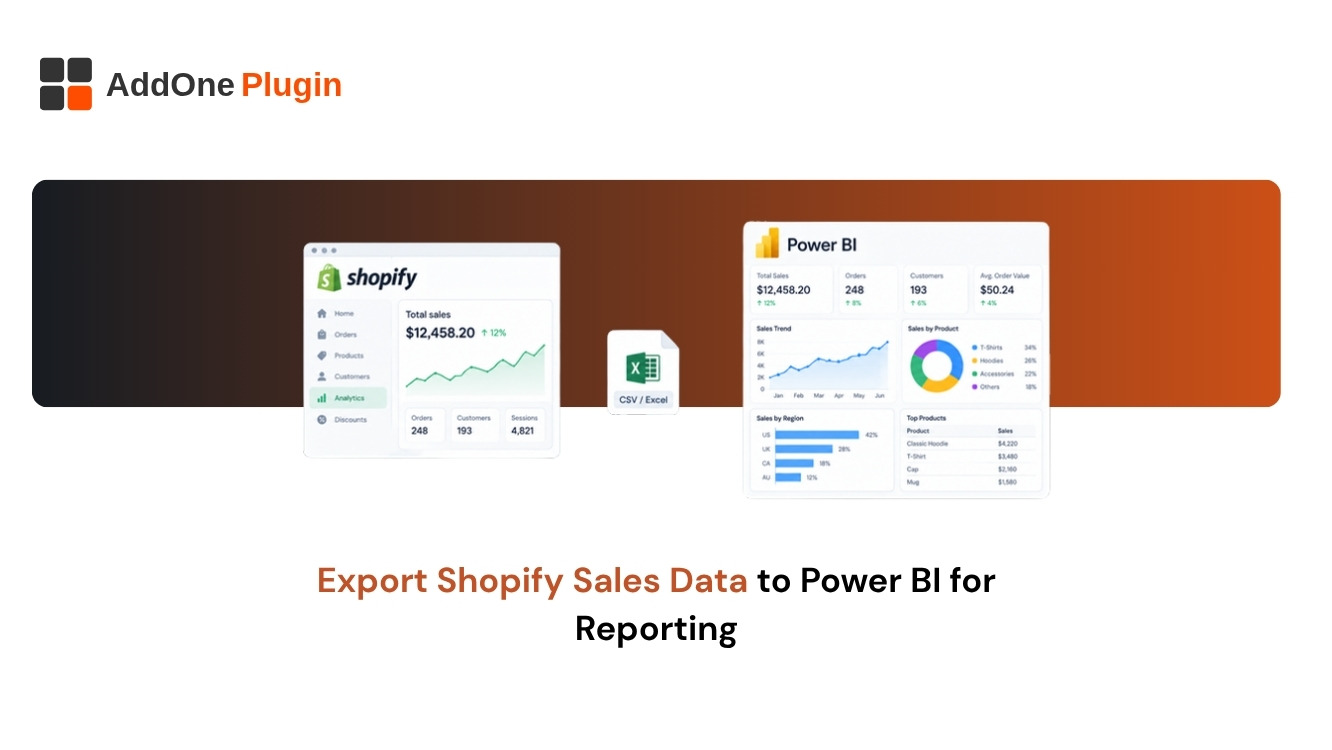
Shopify’s reports answer the questions Shopify expects you to ask. The moment you want to blend sales with ad spend, inventory, or accounting data, you hit a wall. When you export Shopify data to Power BI, you get a reporting layer that matches how your business actually works, with dashboards your team can slice by anything you model.
This guide covers why Power BI is worth the effort, the three main ways to connect it to Shopify, a step-by-step setup, the reports worth building, and the data pitfalls that quietly skew numbers. You will leave with a plan you can start this week.
Why Should You Export Shopify Sales Data to Power BI?
You should export Shopify sales data to Power BI when built-in reports no longer answer your questions. Power BI lets you combine Shopify with other data sources, build custom measures, and share interactive dashboards with your team, all on a refresh schedule.
Two reasons stand out.
Limits of Shopify’s Built-In Reports
Shopify’s reports cover sales, customers, and products well, but they stay inside Shopify. You cannot easily join them with ad platforms, warehouse data, or accounting records, and customization has limits.
Teams hit this wall when finance wants margins by channel, or marketing wants customer lifetime value by campaign.
What Power BI Adds: Blending, Modeling, and Custom Dashboards
Power BI lets you model your data once and reuse it across reports. You define measures such as net revenue, repeat purchase rate, or contribution margin, and every dashboard uses the same definition.
You can also blend sources, set row-level security so people see only what they need, and publish dashboards for leadership.
What Are the Ways to Connect Shopify to Power BI?
You can connect Shopify to Power BI through manual CSV exports, API or connector-based integrations, or automated pipelines into a data warehouse. The right choice depends on your data volume, how fresh the data must be, and the technical skills on your team.
Compare the three approaches.
Method 1: Manual CSV Exports
Export reports from Shopify as CSV files and load them into Power BI. This takes minutes to start and costs nothing.
It breaks down quickly. Someone must repeat the export, files drift out of sync, and nested data such as line items needs extra work. Use it for one-off analysis, not ongoing reporting.
Method 2: Shopify Connector or API Integration
A connector or direct API calls pull orders, customers, and products into Power BI on a schedule. Options include third-party connectors and Power Query calls to the Shopify API.
This method gives you fresher data and less manual work. The trade-offs are setup effort, API rate limits, and maintenance when Shopify updates its schema.
Method 3: Data Warehouse and Automated Pipelines
A pipeline copies Shopify data into a warehouse, and Power BI reads from there. This approach handles large volumes, supports history, and lets you combine Shopify with other sources before reporting.
It requires more setup and a warehouse, so it suits growing stores with several data sources.
How to Choose the Right Method
Choose by volume and freshness. Small stores with simple questions can start with a connector. Stores with many orders, multiple channels, or finance reporting needs benefit from a warehouse.
Actionable takeaway: write down the five decisions you want the dashboard to support, then pick the lightest method that supports them.
If tax reporting drives your dashboard, start with how your invoices handle tax. Our guide to Shopify invoicing for Canadian sellers shows what clean tax data looks like at the source.
How Do You Export Shopify Data to Power BI Step by Step?
To export Shopify data to Power BI, decide which data you need, connect and authenticate your store, clean and model the data in Power BI, and schedule automatic refreshes. Get the model right early, because every report depends on it.
Follow these steps.
Step 1: Decide Which Shopify Data You Need
List the tables: orders, line items, customers, products, refunds, transactions, and fulfillments. Include only what your reports need, because extra data adds refresh time and complexity.
Decide how far back history must go, and whether you need multiple stores in one model.
Step 2: Connect and Authenticate Your Store
Create the access your chosen method requires, such as a custom app with limited API scopes or a connector authorization. Grant the minimum permissions required, and store credentials securely.
Test the connection by loading a small sample before pulling full history.
Step 3: Clean and Model the Data in Power BI
Flatten nested fields such as line items, then build a star schema with orders, line items, transactions, and refunds as fact tables, and products, customers, and dates as dimensions.
Calculate revenue from line items, not order headers, to avoid double counting. Subtract discounts and refunds to reach net revenue.
Step 4: Schedule Automatic Refreshes
Set a refresh schedule that matches how often people check the dashboard. Use incremental refresh for large tables, so each refresh loads only new and changed rows.
Watch API rate limits and run heavy refreshes off-peak. Check refresh history weekly for failures.
What Shopify Reports Should You Build in Power BI?
Build the reports that drive decisions: sales and product performance, customer cohorts and repeat purchase rate, and margins, taxes, and refunds. Start with a small set built around your key performance indicators, then add more.
Three report families cover most needs.
Sales, Orders, and Product Performance
Track revenue, orders, average order value, and units by day, product, collection, and channel. Add comparisons to the previous period and the same period last year.
A top and bottom product view shows where to focus inventory and marketing.
Customer Cohorts and Repeat Purchase Rate
Group customers by first purchase month and track how many return. Cohort views show whether newer customers are as valuable as older ones.
Use the repeat purchase rate to judge retention efforts.
Margins, Taxes, and Refunds
Margin reporting needs cost data, so bring in product costs from Shopify or your accounting system. Show gross margin by product and channel.
Report taxes and refunds separately so net revenue stays clear. Finance teams rely on this view at month end.
How Add One Plugins Builds Shopify Reporting Solutions
We build the data model and dashboards so your team gets answers without wrestling with exports. Good reporting starts with agreed definitions, then a model that enforces them.
Our approach covers the connection, the model, and the dashboards.
Custom Dashboards and Data Models
We design the data model around your questions, build dashboards for sales, customers, and finance, and document the measures so everyone reads numbers the same way.
Browse our Shopify apps to see what we build.
Combining Shopify with Ad, Accounting, and Inventory Data
We bring ad spend, accounting records, and inventory into the same model, which unlocks views such as return on ad spend by product and margin after fees.
If your accounting data lives in Sage 50, our guide to automating Shopify invoices in Sage 50 covers how to get those records flowing automatically.
Ready to see your Shopify data in one place? Let’s talk about how Add One Plugins can help.
What Common Data Pitfalls Should You Avoid?
The common pitfalls are inconsistent currencies, time zones, and taxes, along with duplicated orders and unreconciled refunds. They distort totals without any visible error, so build checks into the model.
Two groups of problems cause the most trouble.
Currency, Time Zone, and Tax Inconsistencies
Shopify stores timestamps in a store time zone, while Power BI and other sources may use UTC. Pick one standard and convert at load time.
Multi-currency stores need a single reporting currency and a clear rule for exchange rates. Decide whether revenue includes tax and shipping, and apply that rule everywhere.
Duplicate Orders and Refund Reconciliation
Joins between orders, line items, and transactions can multiply rows if relationships are wrong. Reconcile your Power BI totals against Shopify’s own sales totals for a sample period.
Match refunds to the original order date or the refund date, and document which you use. Run the reconciliation after every model change.
Conclusion
A reliable Shopify to Power BI setup comes down to a clear question list, the right connection method, a clean star schema, and regular reconciliation against Shopify’s own totals. Get those four right and your dashboards earn trust.
Start with a small set of reports, validate the numbers, and grow from there. When you want a model built correctly the first time, get a free consultation to see how Add One Plugins can turn your Shopify data into dashboards your team trusts. Better reporting leads to better decisions, one dashboard at a time.