
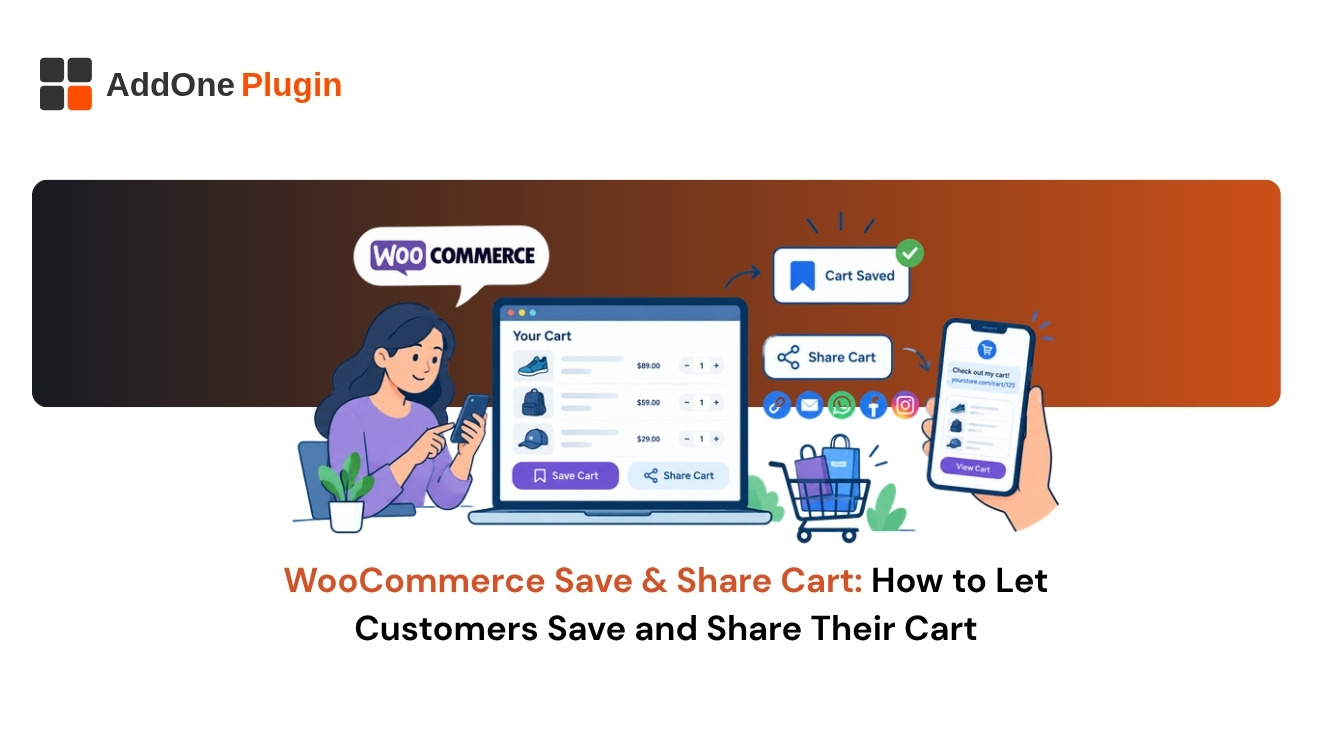
How many carts in your store were filled with care, then abandoned because the buyer needed a second opinion, a payday, or a purchase approval? A WooCommerce save cart feature gives those shoppers a way back. Add a share option and one customer’s cart can become a gift list, a team order, or a quote ready for sign-off.
This guide explains how saving and sharing carts works in WooCommerce, why it lifts sales, and how to set it up properly. You will also see which use cases pay off first and which pitfalls to avoid, so you can launch the feature with confidence.
What Is a Save and Share Cart Feature in WooCommerce?
A save and share cart feature lets customers store their current cart for later and generate a link or message that opens the same cart for someone else. It extends WooCommerce’s default behavior, which keeps carts only for a limited time and ties them to one browser session or user account.
The difference matters because a shopper’s intent does not always match your session timeout.
How Saving a Cart Differs from the Default Persistent Cart
WooCommerce keeps a persistent cart for logged-in customers, so their items return when they sign in again. Guests rely on a session cookie, which expires after a short period and disappears if they switch devices or clear their browser.
A dedicated save cart feature stores the cart under a name or a token on your server. The customer decides when to save it and when to restore it, which makes it reliable across devices and for guests.
How Shareable Cart Links Work
A shareable link contains a unique token that points to a saved cart. When someone opens the link, WooCommerce loads the saved items and quantities into their own cart.
The native add-to-cart URL handles a single product at a time. Sharing a full cart with many products and variations takes a plugin or custom code that stores the cart and rebuilds it from the token.
Why Should You Let Customers Save and Share Their Carts?
Letting customers save and share carts recovers sales that would otherwise end in abandonment, supports buying decisions made by more than one person, and brings new visitors through shared links. It turns a private shopping session into something customers can pick up, pass on, and finish later.
The benefits show up in three places.
Recovering Sales That Would Otherwise Be Abandoned
Shoppers leave carts for reasons you cannot fix with a discount: they need to check a budget, compare options, or wait until payday. A saved cart removes the cost of starting over, which is often what stops a return visit.
Pair saved carts with a reminder email and you move from guessing why people left to giving them a clear way back.
Supporting Group Orders, Gifts, and B2B Approvals
Many purchases involve someone who is not at the keyboard. A parent approves a school order, a manager signs off on supplies, or a friend picks from a gift shortlist.
Sharing the cart link keeps everyone looking at the same items and quantities. Actionable takeaway: add a short “Share this cart” prompt near the cart totals instead of burying it in a menu.
Driving Referral Traffic Through Shared Links
Every shared cart is a product recommendation sent by a real customer to a real contact. The recipient arrives with items already selected, so the path to checkout is short.
Track shared-link visits and conversions separately so you can see how much revenue this channel produces.
Flexible price options pair well with shareable carts. See how pay-what-you-want pricing on WooCommerce works.
How Do You Add Save and Share Cart to WooCommerce?
To add save and share cart to WooCommerce, install a cart-saving plugin or build custom code that stores carts under a token, then add Save and Share buttons to the cart page and configure expiry and access rules. Test both guest and logged-in flows before launch.
You have two build paths and a short setup routine.
Option 1: Custom Code vs. a Plugin
A plugin is the faster route and covers most stores. It adds the buttons, storage, and restore logic without development time.
Custom code makes sense when you need unusual rules, such as restoring carts with negotiated prices, linking carts to CRM records, or integrating with an internal approval flow. Choose a plugin first, and move to custom work when requirements outgrow it.
Step-by-Step Setup with a Plugin
Follow these steps:
- Install and activate the plugin, then review its settings page.
- Place the Save Cart and Share Cart buttons on the cart page, and optionally on the mini cart.
- Choose whether guests can save carts, and whether they must give an email address.
- Set the link format and confirmation message customers will see.
- Place an order using a restored cart to confirm totals and stock behave correctly.
Key Settings to Configure (Expiry, Guest vs. Logged-In Users)
Set an expiry window for saved carts that matches your catalog. Seasonal or limited-stock products suit shorter windows, while evergreen items can hold longer.
Decide how guest carts are protected. Require an email or account for saving, and use long, unguessable tokens in shared links so strangers cannot open someone else’s cart.
What Use Cases Benefit Most from Shareable Carts?
The use cases that benefit most are those where the person choosing is not the person paying, or where the order is built over several visits. Wholesale reorders, registries, and sales-assisted orders gain the most from the feature.
Look at your own order patterns to pick where to start.
Wholesale and Repeat Buyers
Wholesale customers often reorder the same list each month. A saved cart named “Monthly restock” turns a ten-minute task into a few clicks.
If you run tiered pricing for trade accounts, saved carts work well alongside it. See how role-based pricing and visibility for WooCommerce sets that up.
Wedding, Event, and Gift Registries
Registries and gift shortlists depend on sharing. Customers build a cart, send the link to family or friends, and others buy from the same selection.
A shared cart is a lightweight alternative to a full registry plugin when your needs are simple.
Sales Teams Building Carts for Customers
Your sales or support team can build a cart on a customer’s behalf, save it, and send the link. The customer opens it, reviews, and pays.
This works well for phone orders and quotes, and it keeps pricing and product choices accurate because your team picks the items.
How Add One Plugins Helps You Build a Better Cart Experience
We build WooCommerce cart workflows that match how your customers actually buy. That can mean tuning a plugin, extending it with custom logic, or building a bespoke save and share feature from scratch.
The work goes beyond the buttons, because a saved cart is only valuable if it connects to the rest of your operation.
Custom WooCommerce Development for Cart Workflows
We handle the custom requirements plugins cannot: restoring carts with special pricing, tying carts to customer accounts or CRM records, and adding approval steps for team purchases. We also test across product types, including variable and bundled products.
Browse our WooCommerce plugins to see what we build.
Connecting Saved Carts to Email and Reporting
We connect saved cart events to your email platform so a saved cart can trigger a reminder, and we feed the data into reporting so you can see saves, shares, restores, and completed orders in one view.
Ready to turn saved carts into completed orders? Let’s talk about how Add One Plugins can help.
What Should You Watch Out For When Sharing Carts?
Watch for prices, stock levels, and coupons that change between the time a cart is saved and the time it is opened, and protect customer data in shared links. Clear rules for both prevent confusion and support tickets.
Plan for these before launch, not after the first complaint.
Pricing, Stock, and Coupon Changes
A saved cart should reflect current prices and availability when restored, not a frozen snapshot. Decide how to handle items that sold out or changed price, and show a clear message listing any changes.
Apply the same rule to coupons. If a promotion expired, tell the customer instead of failing silently at checkout.
Privacy and Security Considerations
Shared links must never expose personal data such as names, addresses, or loyalty status. Use random tokens, expire old carts, and avoid putting customer details in the URL.
Review your privacy policy to confirm it covers stored carts, especially for guests who give an email address.
Conclusion
A save and share cart feature solves three problems at once: lost return visits, group decisions, and slow reorders. The setup is straightforward when you choose the right storage, protect the links, and handle price and stock changes with care.
Start with a plugin, test every guest and logged-in path, and add reminders and reporting once the basics work. If you want a feature built around your own buying flow, get a free consultation to see how custom WooCommerce development can improve your cart experience. The easier you make it to come back, the more carts become orders.