
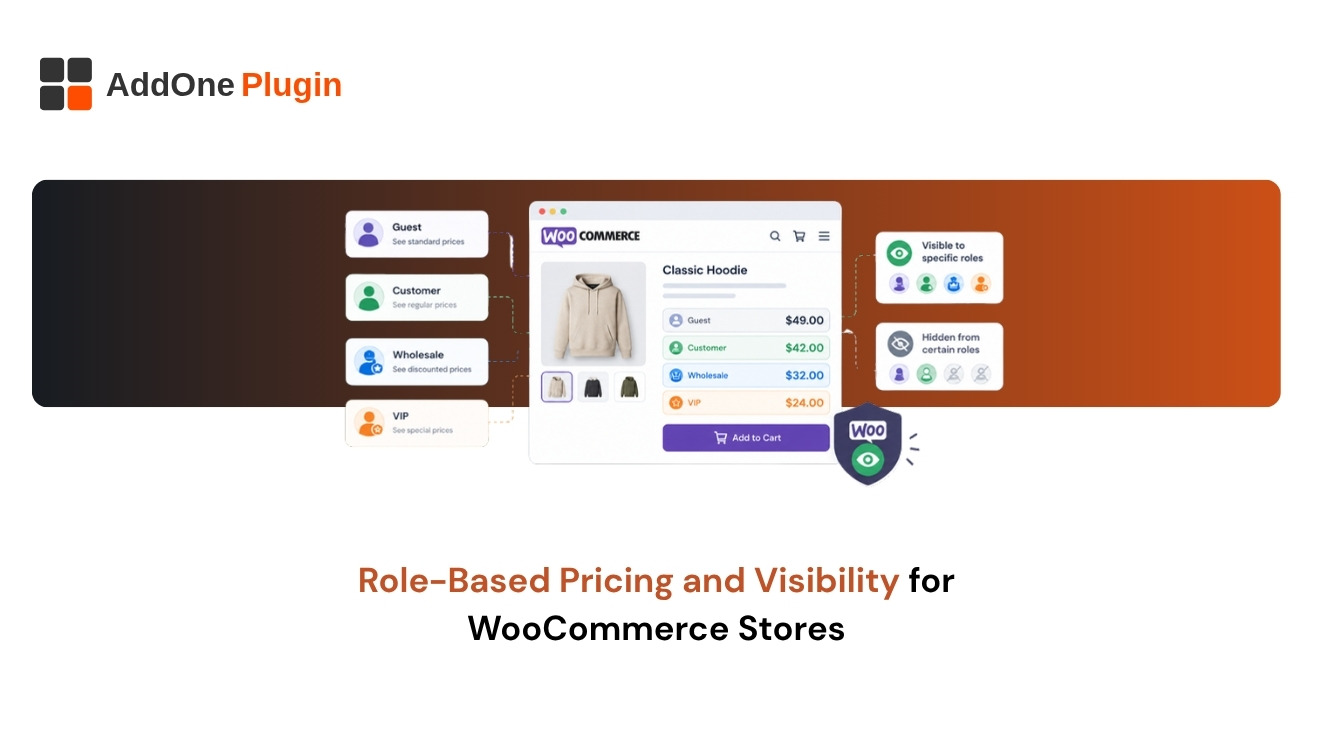
Should a wholesale buyer see the same price as a first-time retail customer? For most stores, the answer is no. Role-based pricing in WooCommerce lets you show different prices, and different products, to different groups of customers from a single store, without running a second site.
This guide explains how user roles drive pricing and visibility, how to set up each, and which B2B practices keep the system clean. You will also see the common mistakes, from caching to leaked prices, so you can launch a setup that stays reliable as your customer base grows.
What Is Role-Based Pricing in WooCommerce?
Role-based pricing in WooCommerce means the price a customer sees depends on their user role, such as retail customer, wholesaler, or member. Role-based visibility goes further and controls which products, categories, or prices each role can see at all. WooCommerce does not include either in its core, so you add them with extensions or custom code.
Two concepts sit under the feature.
How WooCommerce User Roles Work
WordPress assigns every account a role, and WooCommerce adds roles such as Customer and Shop Manager. Roles define what each account can do. You can add your own, such as Wholesale, Distributor, or VIP Member, with a role editor plugin or a short code snippet.
Roles apply to logged-in users. Visitors who are not logged in are treated as a single guest group, so any price or visibility rule for guests needs its own setting.
Pricing Rules vs. Visibility Rules
A pricing rule changes the amount: a percentage discount, a fixed price, or a tier. A visibility rule changes what appears: a hidden product, a hidden price, or a hidden category.
You often need both. A wholesale buyer sees lower prices and a catalog of trade-only products, while retail customers see neither.
Why Do WooCommerce Stores Need Role-Based Pricing and Visibility?
Stores need role-based pricing and visibility to serve retail and wholesale customers from one catalog and to protect exclusive products and member pricing. One store with clear rules costs less to run than parallel sites.
The value shows up in two ways.
Serving Retail and Wholesale Customers from One Store
A single store lets you manage inventory, content, and orders in one place. Wholesale accounts log in and see trade prices, minimum quantities, and bulk options, while retail shoppers see standard pricing.
This approach also keeps your brand consistent. Customers move between roles as their business grows, with no migration to a new site.
Protecting Exclusive Products and Member Pricing
Some products belong to a particular audience: trade-only lines, early access for members, or regional distributor ranges. Visibility rules keep them out of public view.
Hidden prices also protect your pricing strategy from competitors and from retail customers who would otherwise compare.
How Do You Set Up Role-Based Pricing in WooCommerce?
To set up role-based pricing in WooCommerce, create the roles you need, assign them to customers, then use a pricing extension to set role-specific prices or discounts per product, category, or globally. Test each role by logging in as a sample user.
Follow these steps.
Step 1: Create and Assign Customer Roles
Define your groups first: for example Retail, Wholesale, and VIP. Create a role for each beyond the defaults, and assign existing customers to the correct one.
Document who qualifies for each role. Clear criteria prevent disputes and make approvals consistent.
Step 2: Set Role-Specific Prices and Discounts
Most pricing extensions offer three levels: a global rule (for example, 20 percent off for Wholesale), a category rule, and a product-level override. Start with a global rule and add exceptions only where needed.
Use fixed prices for key products where percentages produce awkward numbers. Actionable takeaway: keep a simple spreadsheet of each role’s rules so you can audit the setup.
Step 3: Handle Variable Products and Bulk Rules
Variable products need per-variation pricing, and the extension must support it. Test a product with several variations for each role.
Bulk tiers add another layer, such as a lower unit price from 50 units. Confirm that role pricing and quantity pricing combine the way you expect.
How Do You Hide Products and Prices by User Role?
You hide products and prices by user role with a visibility extension or custom code that filters product queries, catalog pages, and price display based on the logged-in role. Complete hiding covers the shop, search, direct links, and purchase ability.
Hiding is more than a CSS tweak.
Hiding Products, Categories, and Entire Shop Sections
A reliable setup removes restricted products from category pages, search results, related products, and sitemaps. Direct URLs should return a not-found page or redirect to login for unauthorized users.
Test with a logged-out visitor and each role. Check the same product through search, a category link, and a direct URL.
Hiding Prices and Replacing Them with a Quote Button
Some stores hide prices from guests and show a “Login to see prices” or “Request a quote” button. This protects pricing and captures leads.
Disable purchasing for hidden-price products as well, so nobody can add them to the cart through a direct link.
Sales teams can also build and send carts to approved buyers. See how a WooCommerce save and share cart works.
What Are the Best Practices for B2B and Wholesale Stores?
The best practices for B2B and wholesale stores are showing tax the way business buyers expect, setting minimum order rules, and approving new wholesale accounts through a clear workflow. These practices protect margins and reduce support requests.
Three areas deserve attention.
Tax Display and Minimum Order Rules
Business buyers usually expect prices excluding tax. Configure tax display by role where your extension supports it, and confirm tax exemption handling for qualifying customers.
Set minimum order values or quantities for wholesale roles so small orders do not erode margins.
Role Approval Workflows for New Wholesale Buyers
Let prospects apply for a wholesale account through a form, then approve them manually or by rule. Assign the role only after approval so nobody sees trade pricing prematurely.
Send an email on approval with login instructions and a summary of terms.
How Add One Plugins Helps with Advanced WooCommerce Pricing Setups
We design pricing structures that reflect how your business really sells, then build them so they stay accurate as the catalog grows. Complex rules need careful testing across roles, products, and payment flows.
Our work starts with your pricing model and ends with a verified setup.
Custom Rules for Complex Price Structures
We build custom rules for situations extensions do not cover: customer-specific price lists, contract pricing, regional pricing, and rules that combine role, quantity, and date.
Not sure whether to build custom? Try RoleView Pro, our WooCommerce plugin for role-based visibility, or browse all of our WooCommerce plugins.
Aligning Pricing with Invoicing and Accounting
Role-based prices need to flow correctly into invoices and accounting records, including tax treatment and discounts. We connect your WooCommerce setup to your invoicing and accounting tools so numbers match.
Need expert guidance on WooCommerce pricing for B2B and retail? Our team specializes in custom WooCommerce builds and integrations. Get in touch with our team.
What Common Mistakes Should You Avoid?
The common mistakes are caching that serves one role’s prices to another, plugin conflicts that break rules, and hidden products that remain reachable through search or direct links. Each is preventable with testing.
Check these before launch.
Caching and Plugin Conflicts
Page caching can show a cached page, with one role’s prices, to a different user. Exclude logged-in users from page caching, or use a cache setup that varies by role, and confirm that your host’s cache respects the rules.
Test combinations of your pricing, discount, and tax plugins, because rules can overlap or override one another.
Pricing Leaks Through Search and Direct Links
Hidden products can still appear in on-site search, XML sitemaps, feeds, and REST API responses. Check each source, and confirm the product page itself denies access.
Run a monthly check as a logged-out visitor and as a retail customer.
Conclusion
Role-based pricing and visibility let one WooCommerce store serve many audiences. The foundation is clear roles, simple rules with exceptions only where needed, and thorough testing of caching, search, and direct links.
Start with two roles, document the rules, and expand as needs grow. If your pricing structure is complex, get a free consultation to see how Add One Plugins can build role-based pricing that fits your business. A well-built setup turns pricing into an advantage instead of an admin burden.