
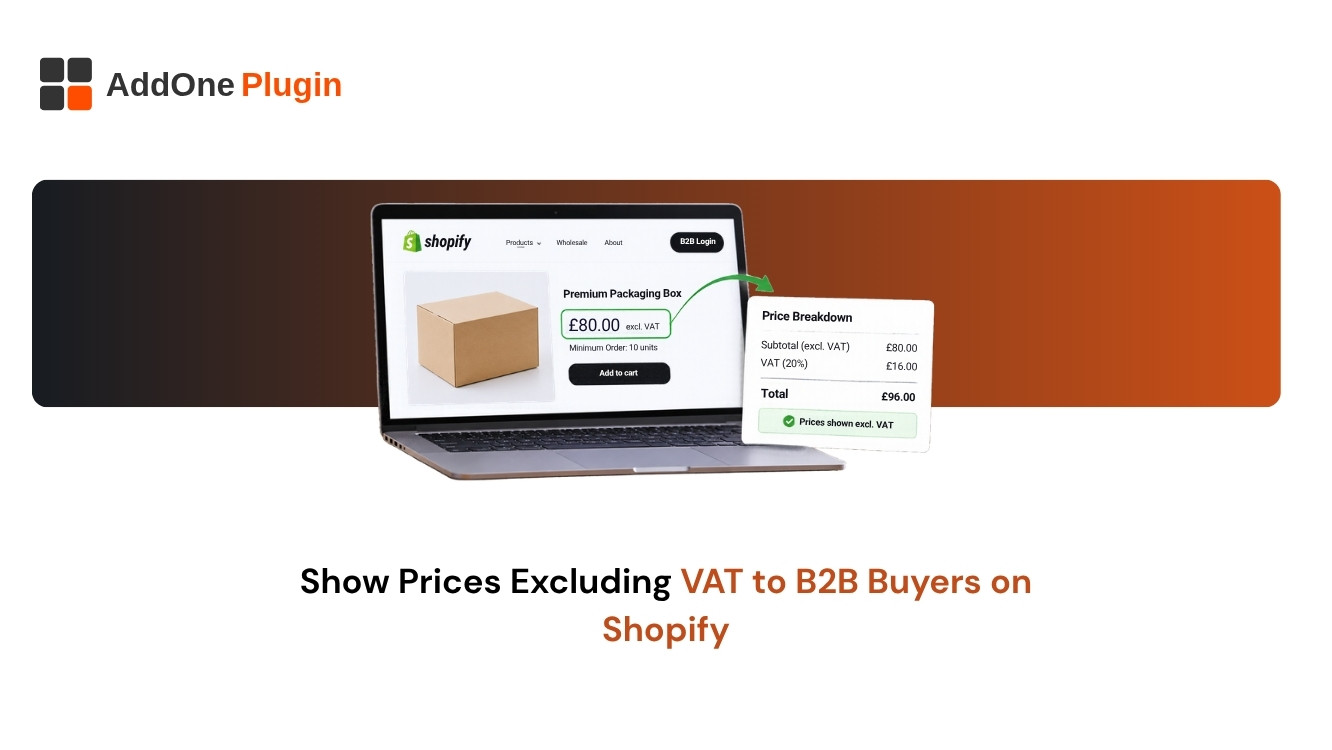
A purchasing manager opens your store and sees prices with VAT already included. Their budget, their quotes and their approval limits are all in net terms, so they have to do arithmetic before they can compare you with a competitor. If you want to show prices excluding VAT on Shopify for business buyers, you need to decide where net prices appear, and make sure your invoice matches.
This guide covers what Shopify can do natively, how to show net prices on product pages, cart and checkout, and how to keep invoices consistent.
Can Shopify Show Prices Excluding VAT?
Yes, in part. Shopify lets you decide whether your prices include tax, and you can show or hide tax on the storefront and at checkout depending on your settings, your theme and any apps. A fully dual display of net and gross usually needs customisation.
Tax-inclusive vs tax-exclusive pricing
Tax-inclusive pricing means the listed price already contains VAT. Tax-exclusive pricing adds tax on top at checkout. Shopify’s Help Center explains how to include or exclude taxes in your prices, and it is the first place to check your setup.
What the native setting controls
The setting changes how prices and tax are calculated and shown. It applies to the whole store or region, so it does not by itself show different prices to B2B and retail buyers. For that you need customer-specific logic from your theme or an app.
How to Show Prices Excluding VAT on Shopify
Work from the storefront inward: product pages first, then the cart, then checkout. Test each stage as a logged-in business buyer.
Product and collection pages
If your prices are set tax-exclusive, product pages show the net price. Some themes add a small note such as “excl. VAT”. For tax-inclusive stores, a theme edit or app can display a net price alongside the gross. Always label which one you show.
Cart and checkout
At checkout Shopify shows tax as a separate line when prices are tax-exclusive. For B2B buyers with a valid VAT exemption, tax may be removed entirely. Our guide to VAT-exempt B2B customers on Shopify covers that flow.
Using an app for dual prices
Price-display apps can show net and gross side by side or toggle by customer group. Evaluate them on theme compatibility, speed and how they handle rounding.
Why Do B2B Buyers Want Prices Excluding VAT?
Business buyers want net prices because they can usually reclaim VAT, so the gross figure is not their real cost. Net prices also match the way they budget and compare quotes.
Net prices and procurement
Procurement teams work with net figures and approval thresholds. Showing net prices removes a calculation and reduces drop-offs on large orders.
Reverse charge and VAT-exempt buyers
For eligible cross-border EU sales, VAT is accounted for by the buyer through the reverse charge. In those cases the invoice shows net amounts and a reverse charge note. Learn how to check the buyer’s number in EU VAT number validation for B2B.
Make the Invoice Match the Price Display
If your storefront says one thing and your invoice says another, you will get support tickets and rejected invoices. The document is the legal record, so the price display must reconcile with it.
Net, VAT and gross lines
A clear B2B invoice shows the net amount per line, the VAT rate and amount, and the gross total. Make sure rounding follows the same method in the cart and on the invoice. If you are new to the format, read what is a VAT invoice on Shopify.
Automating it with InvoiceForge
InvoiceForge builds invoices from the order’s tax lines, so the document reflects what the customer paid, with net, VAT and gross amounts. Try it on the free plan with a B2B test order.
Next Steps
Decide how you want business buyers to see prices, configure it, then reconcile it against an invoice.
Pricing display checklist
- Decide if prices are inclusive or exclusive.
- Label every price as net or gross.
- Test cart and checkout as a business buyer.
- Compare the final invoice to the checkout totals.
Related guides
Read more about Shopify VAT numbers and Shopify wholesale invoicing setup.