
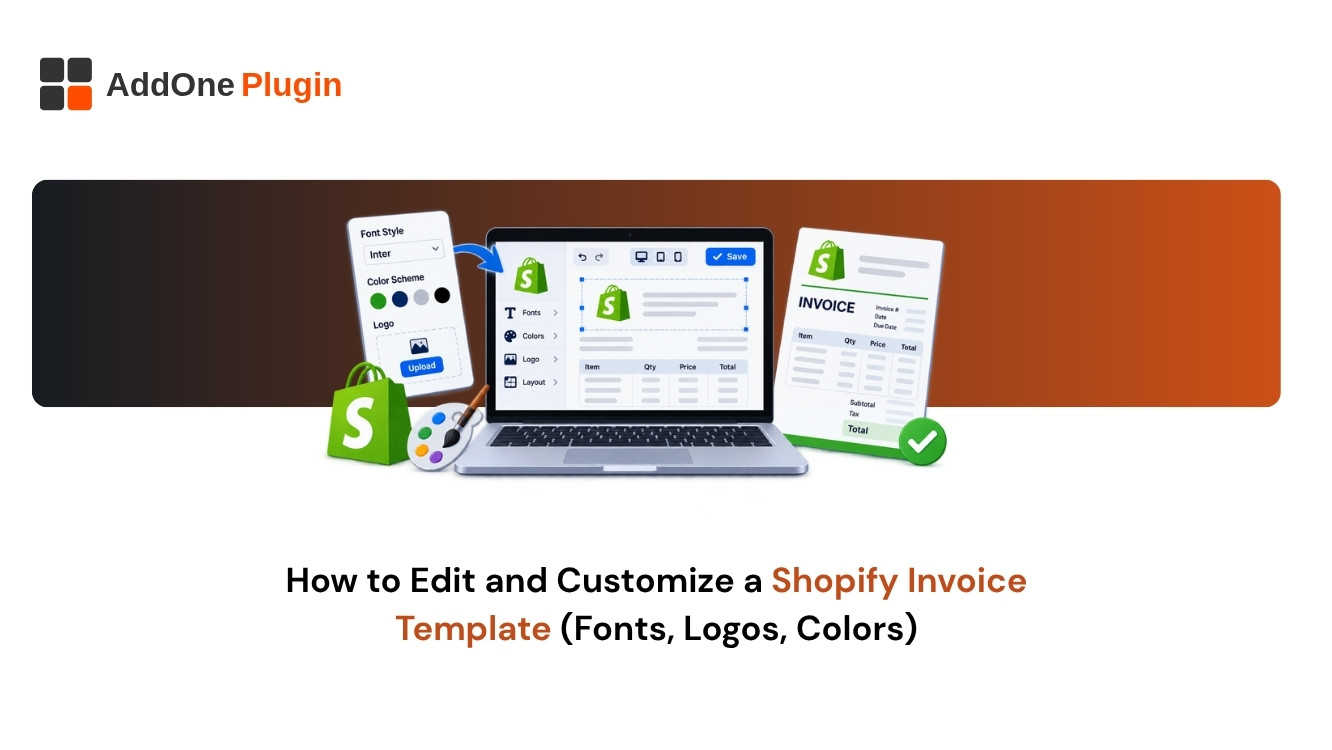
Your invoice has no logo, the wrong fields, and a layout that looks nothing like your brand. You want to edit the Shopify invoice template, but it is not obvious where to start. The answer depends on which tool generates your invoice, because Shopify’s default, Order Printer and invoicing apps each work differently.
This guide compares the three routes, walks through the main steps for each, and shows how to test changes before customers see them.
Can You Edit the Shopify Invoice Template?
Yes, but how much you can change depends on the tool. Shopify’s built-in order emails allow limited edits, Order Printer gives you code-level control, and invoicing apps give you visual control. Start by identifying which document you are actually sending. Many stores send an order confirmation and call it an invoice.
What Shopify gives you by default
Shopify sends an order confirmation email and lets you print order documents. Neither is a formal tax invoice, and neither carries a unique invoice number out of the box. Our guide to order confirmation vs invoice explains the difference.
What you can and cannot change
Notification emails accept edits to wording and branding. Adding fields such as a tax ID or PO number usually needs code or an app. If you need legal invoice features, plan for an app from the start.
How to Edit a Shopify Invoice Template With Order Printer
Order Printer is a Shopify app that creates invoices and packing slips from templates written in Liquid. It suits you if you are comfortable editing code. For alternatives, see Shopify Order Printer alternatives compared.
Opening and duplicating a template
Open the app, choose the template you want to change, and duplicate it before editing. Working on a copy means a mistake cannot break the version your team uses every day.
Changing layout, logo and fields
In the template code, you can swap the logo image, rearrange sections and add fields using Liquid variables. Look up variable names in the reference rather than guessing: our Shopify Liquid variables guide lists the ones you will use most. Keep HTML simple, because heavy styling can print poorly.
Edit a Shopify Invoice Template in an Invoicing App
Invoicing apps replace code with a visual editor. This is the quickest route for most stores, especially those that need several document types.
Fonts, logos and colors
Upload your logo, set brand colors and pick fonts in the editor. Preview updates immediately, so you can adjust spacing and alignment without printing test pages.
Tax IDs and PO numbers
Business buyers expect fields such as your tax registration number, their VAT number and a purchase order reference. Add them as template fields so they fill from the order automatically. Pair this with a clean numbering scheme: see how to customize the Shopify invoice number format.
Saving a template per document type
Invoices, receipts, credit notes and packing slips have different needs. Save a separate template for each, and keep branding consistent across them.
How Do You Test Template Changes?
Test every change on a sample order before it reaches a customer. A five-minute check prevents embarrassing mistakes, such as blank fields or a broken total.
Using a test order
Create a draft or test order that includes a discount, a tax line, shipping and a long product name. These are the cases most likely to break a layout.
Checking mobile and print layouts
Open the PDF on a phone and print it on paper. Check that columns do not overflow and that the totals sit where you expect.
Customize Invoices Visually With InvoiceForge
If you want a polished invoice without code, InvoiceForge has a visual template editor. The free plan lets you try it with real orders.
Drag-and-drop template editor
Drag fields into the layout, change colors and fonts, and preview with real order data. No Liquid knowledge is needed.
Branding across invoices and packing slips
Set your branding once and apply it to every document type. Customers then see a consistent look from receipt to credit note. Read more about Shopify packing slip templates.
Next Steps
Pick the route that fits your skills and your document needs, then test.
Template checklist
- Identify which document you send today.
- Choose a route: default emails, Order Printer or an app.
- Duplicate the template before editing.
- Test with a complex order.
- Check the PDF on mobile and paper.
Related guides
See how professional invoices on Shopify work end to end.