
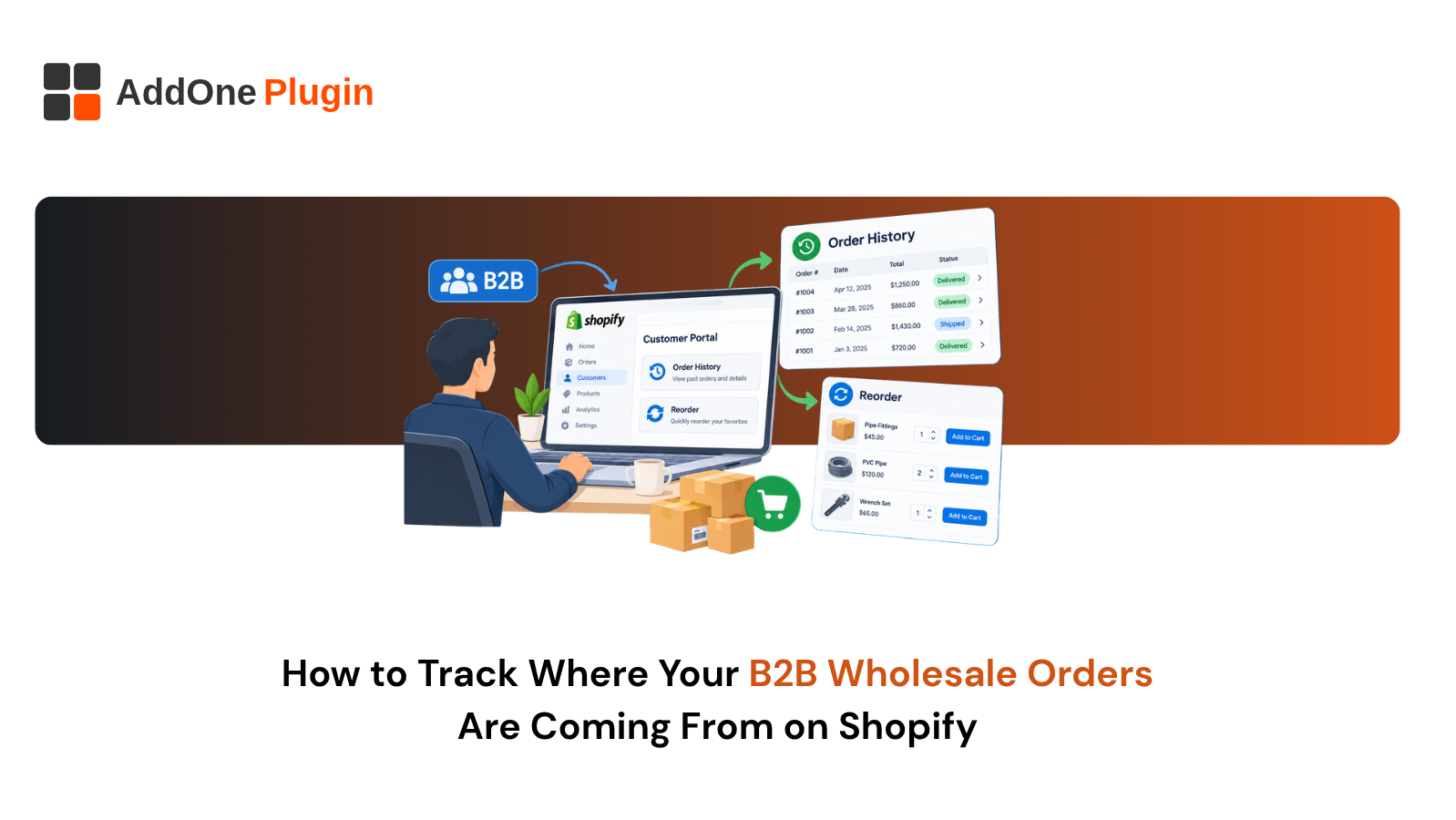
Your best wholesale buyers already know what they want. They need the same items every month, and every extra step between them and the checkout is a chance to lose the order. If your buyers still reorder by email, phone, or a spreadsheet, you are paying for friction with repeat sales.
This guide covers B2B order history and reorder tools on Shopify, from native features to apps to custom builds. You will see what Shopify gives you out of the box, how to set up a working reorder flow, which tools fit which store, and when custom development pays off. By the end, you will know exactly what to fix first.
Why B2B Order History and Reorder Tools Matter on Shopify
Wholesale revenue rarely comes from one big first order. It comes from the same accounts buying again and again. A store that makes reordering fast protects that revenue, and a store that makes it slow hands it to a competitor.
Order history and reorder tools are the center of that experience. They let a buyer see what they bought, find it again, and check out without starting over. The sections below explain why this matters for revenue, what buyers expect, and what manual reordering really costs.
How Repeat Purchasing Drives B2B Revenue
B2B buyers purchase on a cycle. A restaurant supplier restocks weekly. A retail shop reorders best sellers each season. A contractor buys the same fasteners every month. That rhythm is your recurring revenue.
When reordering is easy, the cycle holds. When it is hard, buyers delay, shrink the order, or split purchases across suppliers. Winning a new wholesale account takes sales time and outreach, while a repeat order from an existing account takes far less effort. Protecting that repeat flow is usually one of the cheapest growth levers you have.
What Buyers Expect From a B2B Account Portal
Buyers compare your portal to the consumer sites they use every day. They expect to log in once, see past orders, and repeat one with a single click. They expect their own pricing to show up without a code.
A good portal also answers routine questions without a phone call. Buyers want to check order status, download invoices, and see which locations placed which orders. If your team gets calls that start with “Can you send me my last invoice?”, your portal is missing something buyers expect.
The Cost of Manual Reordering by Email and Phone
Manual reordering looks free, but it is not. Someone on your team reads the email, finds the past order, retypes the SKUs, checks pricing, and creates a draft order. Each step adds time and a chance for a typo.
Errors cost more than minutes. A wrong SKU means a return, a credit, and an annoyed buyer. Add the delay between the buyer’s request and your reply, and some orders never get placed. Track how many reorder requests reach your inbox each week, because that number shows how much work a better portal could remove.
The same thinking applies to getting paid. Reorders that arrive by email often turn into invoices chased by hand, which is why we compare Shopify and WooCommerce for B2B invoicing in a separate guide.
What Does Shopify Offer Natively for B2B Order History?
Shopify includes order history and a buy-again option through customer accounts, and its B2B features add company structure on top. These native tools cover the basics for many stores. Feature depth varies by account type and setup, so confirm what applies to you in Shopify’s B2B documentation.
Customer Accounts and Company Profiles
Shopify’s B2B setup lets you create company profiles with one or more locations and assign buyers to each. According to Shopify’s documentation, a company is the parent organization for its locations, and each location can carry its own addresses, tax details, catalogs, and payment terms. Buyers are added as contacts with a role, either ordering only or location admin.
This matters for order history. An ordering-only contact can purchase and review their own orders, while a location admin can also view all orders for that location. Set up companies carefully at the start, because the structure you choose decides who can see and repeat which orders later.
Order Status, Invoices and Reorder Buttons
In the new customer accounts experience, buyers can view their order history, check order status, and reorder. Shopify announced a “Buy Again” button on the order history and order details pages for B2B customers, which lets them duplicate a past order and adjust products and quantities before checkout. Inventory availability is checked at checkout. See Shopify’s changelog entry on repeat orders for B2B for the details.
Invoices are a separate piece. Shopify generates order confirmations and supports payment terms, but a formal, branded invoice document may need an app or a custom template. Test what a buyer actually sees after checkout, and compare it with what your accounting team needs.
Where Native Features Fall Short for Wholesale Buyers
Native tools handle the simple case: one buyer, a short order, a quick repeat. Wholesale buyers often need more.
Common gaps include saved lists for recurring orders, fast SKU entry for large carts, CSV upload, and reorder from a specific location’s history. Buyers who order forty line items do not want to click through product pages. Native tools also do not connect to your ERP on their own, so history stops at Shopify. If your buyers ask for something native tools do not offer, that request is your shopping list for the next section.
How Do You Set Up B2B Order History and Reorder Tools on Shopify?
You set up B2B reordering on Shopify by enabling company accounts, giving buyers a login, adding a reorder button or saved lists, adding a quick order form for bulk entry, and testing the full buyer journey. Each step builds on the one before it.
Here is how buyers repeat orders in practice. A buyer logs in, opens their order history, picks a past order, and adds its items to the cart in one action. For larger accounts, saved lists and quick order forms speed this up further. The four steps below get you there.
Step 1: Enable B2B Company Accounts and Customer Login
Start with the foundation. Create company records in your Shopify admin, add locations, and attach each buyer as a contact. Then confirm your store uses customer accounts so buyers can log in and see history.
Decide who gets which permissions before you invite anyone. Some buyers should place orders, and others should only view them. Assign catalogs and payment terms at the company or location level so each branch sees the right prices. Send a test invitation to your own email first and walk through the login.
Step 2: Add a Reorder Button or Saved Order Lists
Next, give buyers a fast path from history to cart. If Shopify’s built-in Buy Again option covers your needs, make sure it appears where buyers will look, and test it with a real B2B account.
If it does not, add a reorder app or a custom feature. Saved order lists work well for buyers who repeat the same basket. A buyer builds a “monthly restock” list once and loads it each month. Whichever route you pick, confirm the reorder respects the buyer’s catalog pricing and flags items that are out of stock.
Step 3: Add Quick Order Forms for SKU and Bulk Entry
Large buyers know their SKUs. A quick order form lets them type or paste SKUs and quantities straight into a grid, with no browsing. Many of them keep their product list in a spreadsheet, so CSV upload saves even more time.
Place the form where logged-in buyers will find it, such as the account page or the main navigation. Check that it handles variants, minimum order quantities, and case packs. A quick order form that ignores these rules creates more support tickets than it removes.
Step 4: Test the Buyer Journey End to End
Testing is where most setups fail. Create a test company with two locations and two buyers, then act as each one.
Run through this checklist:
- Log in and confirm the correct prices appear.
- Open order history and confirm only your own company’s orders show.
- Reorder a past order and confirm quantities, prices, and stock warnings.
- Place a quick order with a pasted SKU list.
- Check out with net terms and confirm the invoice and confirmation emails.
Ask a real buyer to try it too. They will spot problems you will not.
Which Reorder Apps and Tools Work Best for B2B Stores?
The best reorder tool depends on how your buyers order. A buyer with five items needs a buy-again button, and a buyer with two hundred SKUs needs a bulk grid. Match the tool to the behavior, and avoid paying for features your buyers will not use.
The Shopify App Store changes often, so check ratings, recent updates, and plan compatibility before you install anything. Review each app’s listing for current features instead of relying on summaries.
Reorder Lists and Buy-Again Apps Compared
Reorder apps fall into two groups. Buy-again tools add a button to past orders. List tools let buyers save and name baskets they reuse.
Compare apps on a few points: whether they respect company catalog pricing, whether they work with B2B company accounts, how they handle out-of-stock items, and whether buyers can share lists across locations. Install on a development store first and test with a B2B test account. Many apps are built for consumer stores, so confirm B2B support before you commit.
Quick Order Forms and CSV Upload Tools
Quick order tools cut the time it takes to build a large cart. The core features to look for are SKU search, bulk paste, and CSV upload. Better tools also validate SKUs as buyers type and show errors in plain language.
Ask whether the tool shows each buyer’s own pricing and whether it enforces minimums and case quantities. Shopify’s native B2B catalogs support quantity rules and volume pricing, so a good tool should respect them rather than work around them. Ask how it handles products with many variants. A tool that fails any of these will send buyers back to email.
Integrations With Net Terms, Quotes and Your ERP
Reorder tools do not work alone. A buyer who reorders on net terms needs the payment terms to carry through checkout. A buyer who wants a custom price needs a quote path.
Check how each app connects to payment terms, draft orders, and quotes. If your inventory and order data live in an ERP, ask how each tool syncs with it. Many apps do not sync at all, which is where custom work fills the gap. Read more on how this fits your back office in our guide to Shopify B2B order management for manufacturers and distributors.
How Can Custom Development Improve B2B Reordering?
Custom development improves B2B reordering by building the exact experience your buyers need: a portal designed around how they order, order history connected to your back-office data, automated reminders, and reporting that shows which accounts are growing. Apps cover common cases. Custom work covers the rest.
Not every store needs this. If a reorder app and a quick order form solve your buyers’ problems, stop there. If you keep hitting limits, the options below show what is possible.
Custom Reorder Portals and Account Dashboards
A custom dashboard puts everything a buyer needs on one screen: recent orders, saved lists, open invoices, and a quick order box. You can tailor it by role, so a purchaser sees ordering tools and an accountant sees invoices.
Custom portals also remove workarounds. If your buyers reorder by case, by location, or by a bill of materials, the portal can match that logic. This is the kind of build the e-commerce team at Inshalytics handles.
Syncing Order History With ERP, CRM or Accounting Data
Buyers often place orders in more than one place. Phone orders, EDI orders, and web orders can all live in different systems. A sync brings them into one history that the buyer sees in their Shopify account.
Syncing also helps your team. Sales reps see the same history in the CRM that the buyer sees online. Accounting sees paid and unpaid invoices without re-entering data. Scope the sync carefully: decide which system owns each record, how often data moves, and what happens when the two disagree.
Reorder Reminders and Automated Email Flows
Many B2B buyers reorder on a predictable schedule, which means you can predict when they are due. A reminder email that lists the buyer’s last order and links straight to the reorder page turns a missed order into a placed one.
Build flows around timing: a reminder when an account passes its usual gap, a note when a frequently bought item returns to stock, and a win-back message for accounts that have gone quiet. Keep messages short and personal, and link to the exact order the buyer would repeat. Reminders also work best when payment is smooth, so look at how your payment gateway affects cash flow on B2B orders.
Tracking Reorder Rate and Account Value in Analytics
You cannot improve what you do not measure. Set up reporting for reorder rate, time between orders, average order value, and revenue by company account.
These numbers show which accounts are growing and which are slipping. They also prove whether your portal changes work. Compare reorder behavior before and after a launch. Segment by account size so a few large buyers do not hide trends in the rest.
Want to see where your portal loses repeat sales? We offer a free B2B account-portal review that shows exactly where reorder friction costs you orders.
Next Steps: Choosing the Right Reorder Setup
You now know the pieces: native accounts, reorder buttons, saved lists, quick order forms, and custom builds. The final step is picking the setup that matches your store today, with room to grow.
Quick Decision Checklist by Store Size
Use this checklist to choose where to start:
- Small catalog, few accounts: Use native accounts and the built-in Buy Again option. Add a simple saved-list app only if buyers ask.
- Mid-size catalog, growing accounts: Add a quick order form with CSV upload and a B2B-compatible reorder app. Set up basic reorder reminder emails.
- Large catalog, many locations: Plan a custom portal, an ERP or accounting sync, and reorder analytics.
Review the checklist every six months. Your buyers change as your accounts grow.
When to Bring in a Shopify Development Partner
Bring in a partner when apps start to fight each other, when your team spends hours on manual reorders, or when your data lives in systems Shopify cannot reach. A partner also helps when you plan a launch and want it tested before buyers see it.
Look for a team that has built B2B account experiences, not just storefronts, and ask to see examples. A good partner starts with your buyers’ workflow and recommends the smallest build that solves it.
Easy reordering turns one-time wholesale buyers into steady accounts. Start with native tools, add quick order forms and reorder lists where buyers struggle, and invest in custom work when your volume demands it. Strong B2B order history and reorder tools on Shopify pay back in repeat sales and fewer support calls. Ready to find the friction? Request your free B2B account-portal review from Inshalytics and we will show you where reordering costs you revenue. Your best buyers are ready to order again, so make it effortless.